
Prepare a manuscript
- Open DSF Studio.
- Create a project or open a manuscript from the dashboard.
- For a local manuscript, use the .dsfp file-opening action.
- Sign in to the correct account when using cloud manuscripts.
The dashboard distinguishes cloud manuscripts from working copies in this browser. A downloaded .dsfp is a separate file, not an entry in the browser-copy list.
Project name and Read title
The name used to organize a project and the Read title shown to readers have different roles. Before publishing, check Read information and set the title for each intended language.
Changing menu language does not translate a manuscript or its Read title.
Fixed pages and Flow manuscripts
| Authoring method | Purpose | At distribution time |
|---|---|---|
| Fixed pages | Arrange images, illustrations and text per page | Preserve the page layout |
| Flow manuscripts | Compose text into pages using typesetting settings | Resolve line, column and page boundaries |
Flow is an authoring method. It does not mean Reader reflows the publication to the screen width.
Edit your pages
- Select a page or Flow manuscript.
- Enter text and place images or other assets.
- Adjust fonts, size, writing direction and spacing.
- Check page order, spreads and binding direction.
- Preview the intended reading order and layout.
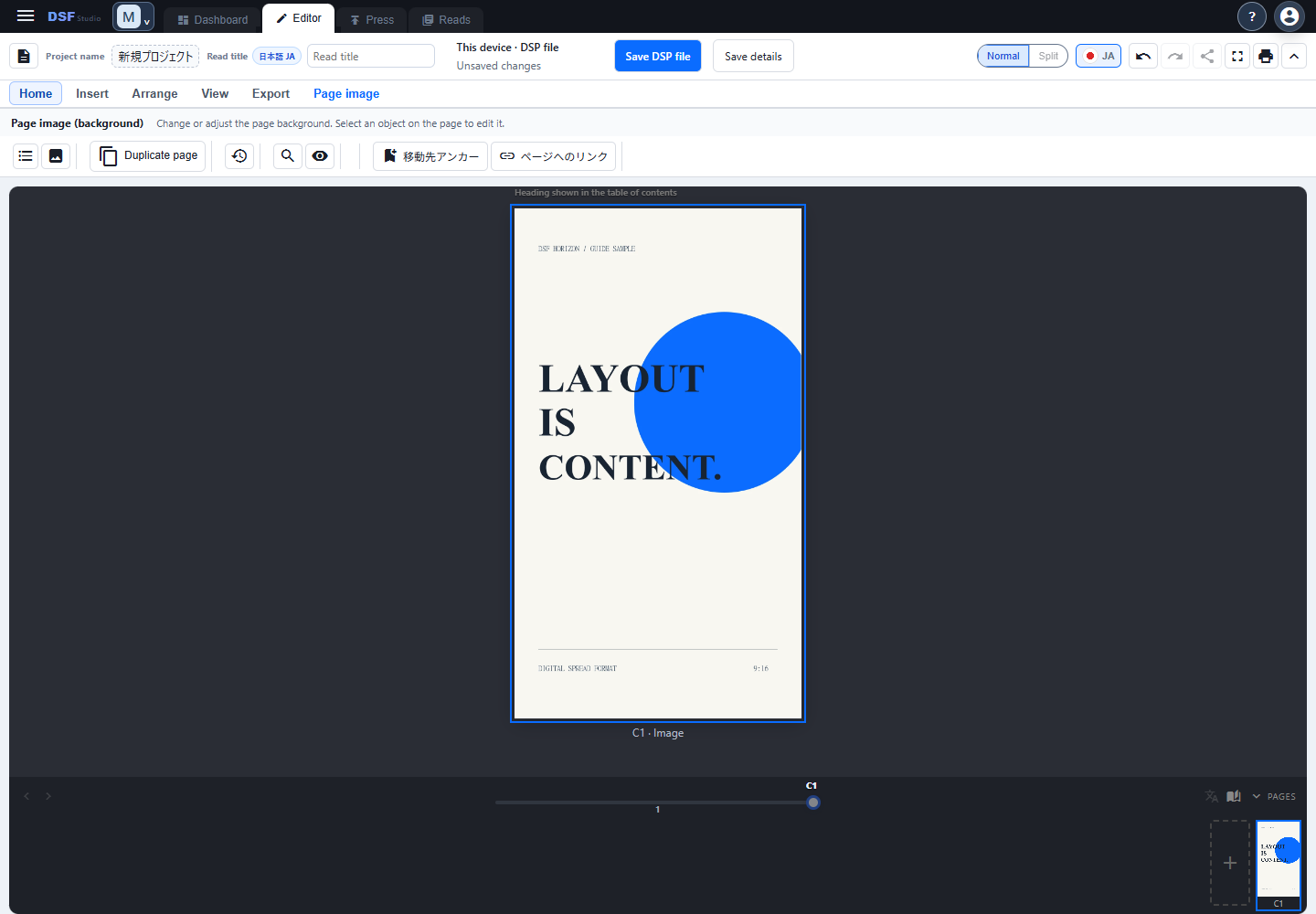
White space and text positioning are part of the work. Check readability at a size appropriate for smartphone reading.
Manage Read languages
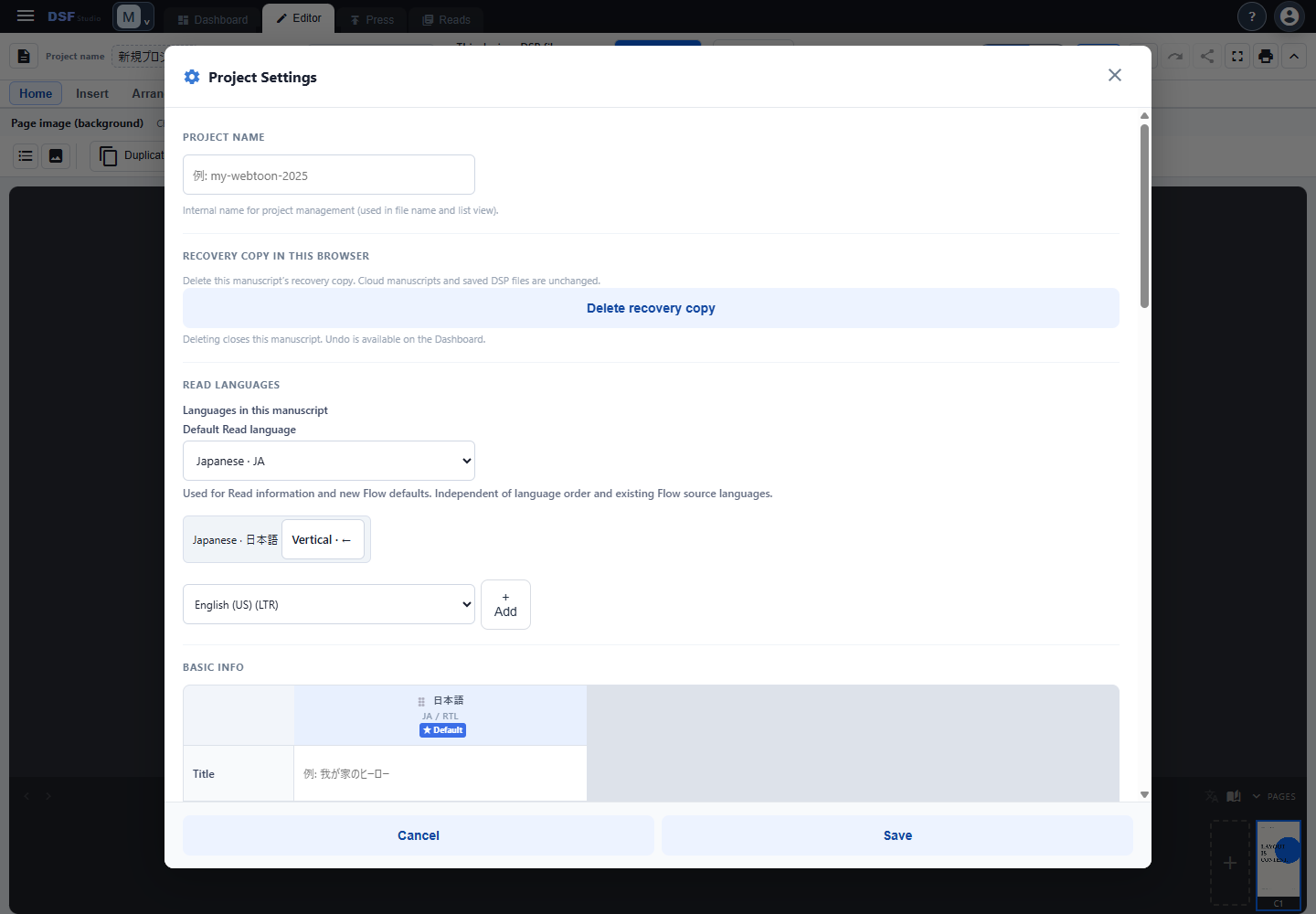
Check project languages and each manuscript’s language. Adding a language does not create translated text. Prepare the body, images and titles required for each variant.
Preview each Read language and verify the intended page structure.
Distinguish three ways of saving
| Location | Meaning | Typical purpose |
|---|---|---|
| Cloud manuscript | Saved to the signed-in account | Account-linked creation |
| Browser working copy | A recovery copy in this browser and device | Resume local work |
| .dsfp file | An exported editable manuscript | Backup or transfer |
A local working copy is not proof of successful cloud saving. Check cloud-save status and file export separately.
Before you finish
- Wait for saving to finish and check the status for the intended location.
- Also export important manuscripts as .dsfp.
- Verify the filename and save location.
- Continue to Publish a Read when ready.
If saving fails or a conflict requires reloading, protect your current edits in a file before proceeding. Avoid closing the page without checking unsaved work.
Manuscript editing and Writing
Studio changes the creator’s manuscript. Writing adds personal annotations over a Read in Reader. Writing does not write back to the creator’s Studio project or the published Read on Horizon.