
What Horizon does
Horizon connects discovering Reads with creating and publishing them. A Read can be a novel, comic, photo collection, travel brochure, public information sheet, manual, notebook or planner.
Names you will see
| Name | Meaning |
|---|---|
| Read | One piece of content created and published with DSF |
| Reads | The plural, also used for lists and categories |
| Horizon | The platform for discovering, publishing and collecting Reads |
| DSF Studio | The tool for creating and editing manuscripts |
| DSF Reader | The standard environment for reading Reads |
| Writing | Handwriting and annotations added over the original in Reader |
Manuscripts, projects, pages, body text and assets still refer to their specific roles. They are not interchangeable with Read.
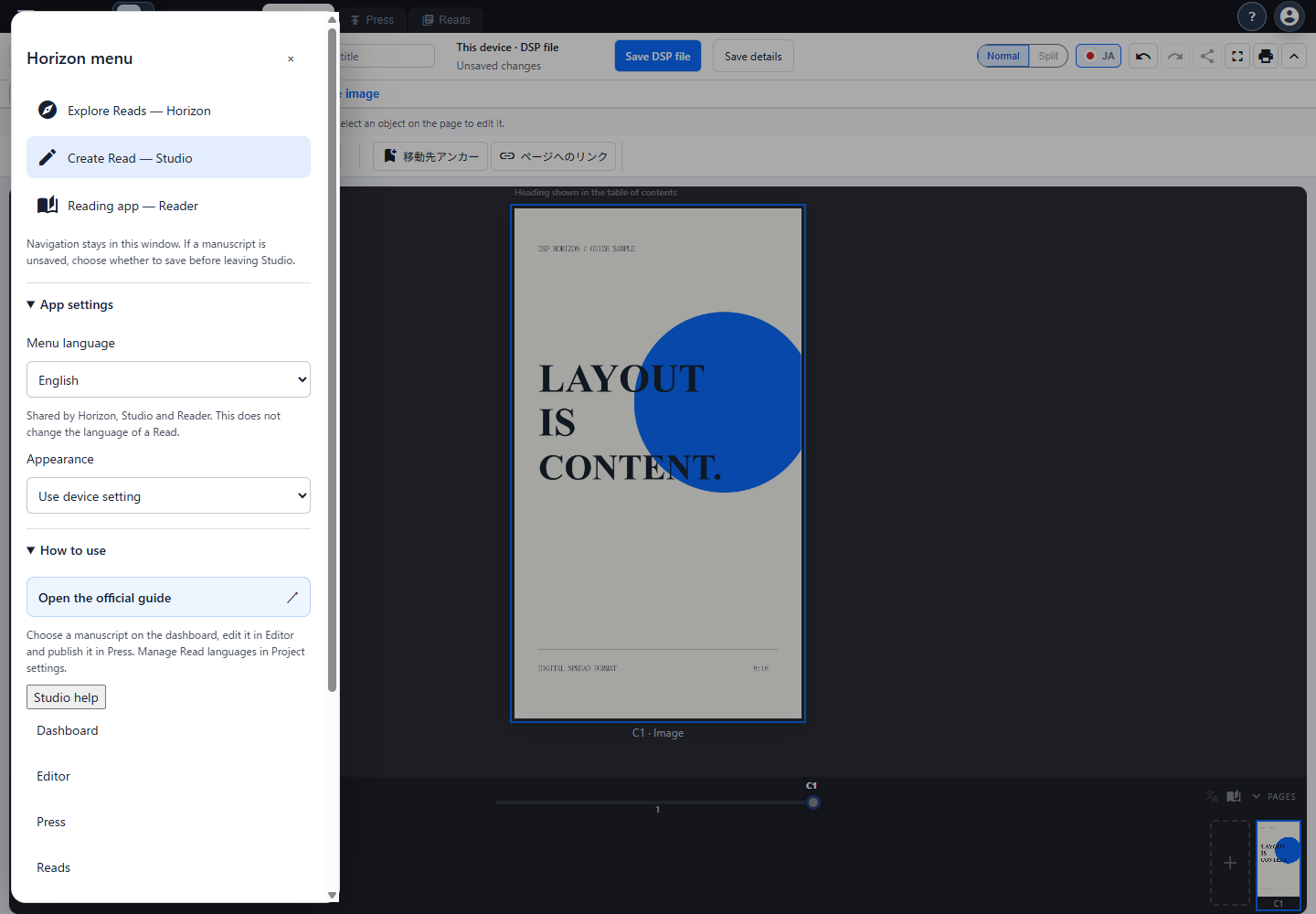
Publishing that preserves layout
DSF means Digital Spread Format. Its base page ratio is 9:16. Text position, image size and white space remain part of the creator’s expression.
Graphic pages can use WebP images, while text pages can use precomposed fixed text. Reader does not reflow either type to a new line or page layout for the screen width. Zoom and display modes use the original layout as their basis.
Start by reading
- Find a Read in Horizon.
- Open it in Reader.
- For a local file, use Reader’s Open file action.
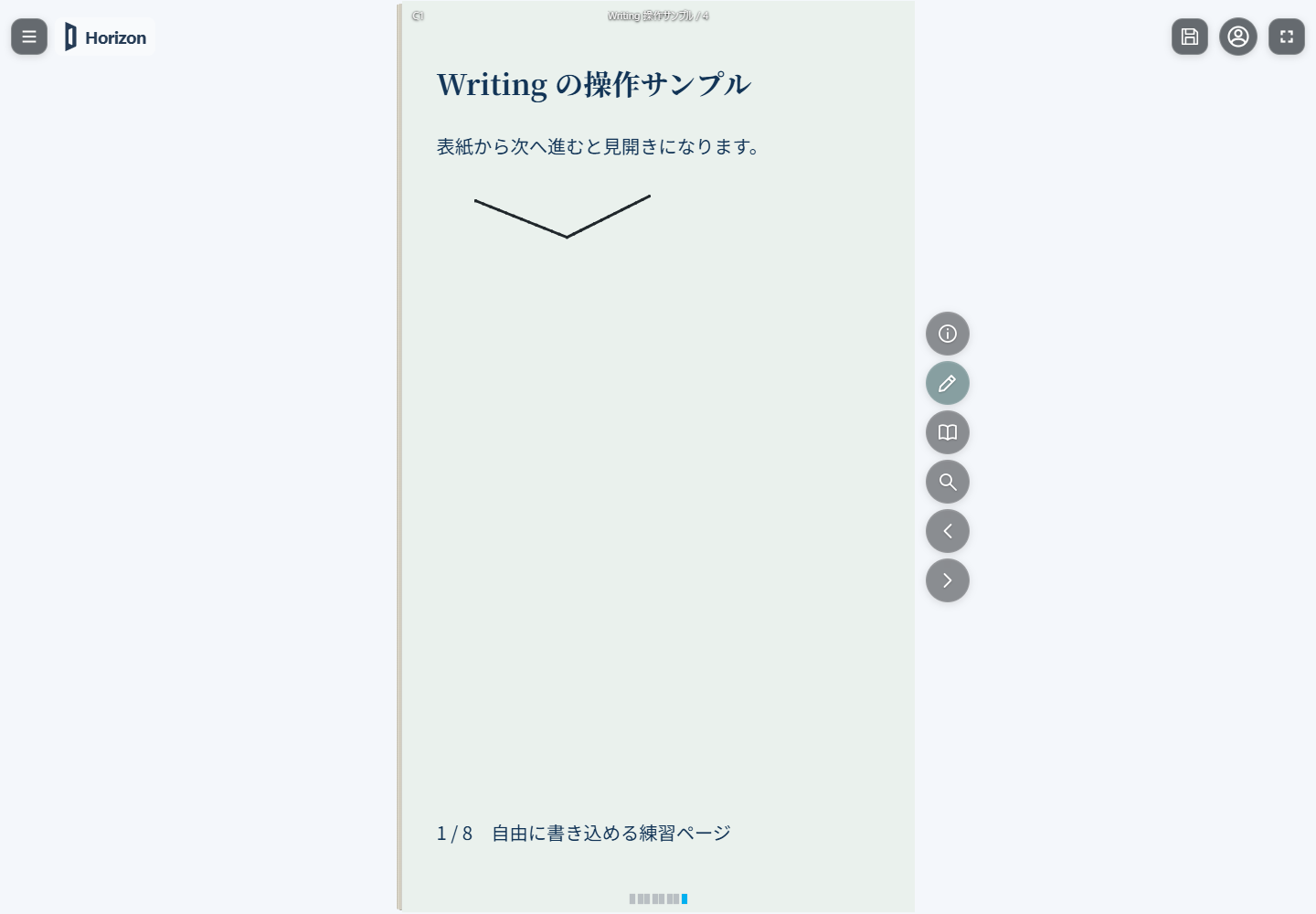
- To add your own notes, use Writing on a supported Read.
Continue with Read a Read and Add your own notes.
Start by creating
- Prepare a project in Studio.
- Edit and save the manuscript in Editor.
- Prepare distribution data in Press.
- Issue it to Horizon, then manage its publication status in Reads.
Saving a manuscript, issuing a Read and publishing it are separate actions. Begin with Create a Read.
Two file types
- .dsfp (DSF Project): an editable Studio manuscript project.
- .dsfr (DSF Read): for reading, distribution and saving Writing.
Editable Writing files also use .dsfr. They are distinct from .dsfp Studio projects. See Files and format.
Sign-in and your public name
Account-linked actions, including cloud manuscript storage and issuing to Horizon, require sign-in. Current authentication uses a Google account.
If prompted, set up a DSF public profile. The public name shown to readers and creators is managed separately from your Google account name and email address.
Two language settings
The menu language controls application labels. The Read language selects a language variant actually included in the publication.
Changing menus to English does not translate the body text. Reader can only offer languages included in that Read.